How do I edit one part of an image with AI and keep everything else the same?
Write 'change only X, keep the rest', or paint the area with Mask edit so the rest is protected. Miku AI success rates, steps and prompts.
Published · Updated · 4 min read
Short answer: There are two ways. Write "change only X to Y and keep everything else unchanged" in the prompt, or click "Mask edit" on your reference image and paint the area to change: unpainted areas are protected and are not redrawn. When the spot is hard to describe, or other parts keep changing too, the mask is more reliable. On Miku AI over the last 30 days, the 244 tasks that used the mask editor produced an image about 88% of the time.
Why "change one thing" keeps changing other things
When an image model edits a photo, it redraws the whole picture with your original as a guide. If the prompt only says "make the mug blue", the model knows the mug should change but not whether the tablecloth, the hand or the background may be "improved" along the way, so it often adjusts them too.
There are two fixes: list in words what must stay, or use a mask to fence in the only area that may change.
What Miku AI users actually did
We looked at tasks on Miku AI over the last 30 days (up to November 2026) whose prompts explicitly asked to change one thing and keep the rest:
- 149 users submitted 663 tasks, all with a reference image, usually just the original.
- About 83% produced an image. Only about 3.5% were refused by content moderation, far fewer than remove-object or upscale tasks (around 15% each).
- Only 4 of those 663 tasks used the mask editor. Almost everyone relied on the prompt alone.
- Across all tasks, 244 used the mask editor, from 69 users, and about 88% of them produced an image.
One caveat: "success" means an image came back, not that nothing else changed. The real advantage of the mask is that unpainted areas are protected, which is more direct than any wording.
Results by model on change-one-thing tasks (only models with at least 20 tasks; median time for successful tasks):
| Model | Tasks | Success | Median time | Credits per 1K image |
|---|---|---|---|---|
| GPT Image 2.5 Flare | 89 | 92% | 57 s | 0.3 |
| GPT Image 2.5 Sunburst | 141 | 84% | 90 s | 0.3 |
| GPT Image 2 | 373 | 84% | 83 s | 0.3 |
| Nano Banana 2 | 21 | 67% | 54 s | 0.25 |
GPT Image 2.5 Flare had the highest success rate and the shortest wait, and none of its 89 tasks was refused, so start there. GPT Image 2 and GPT Image 2.5 Sunburst both landed around 84%. Nano Banana 2 did worse on this job, though on only 21 tasks.
Step by step with the mask editor
- Open the workspace and upload the original as a reference image.
- Click "Mask edit" on that reference image to open the "Edit mask" editor.
- Paint over the area to change. Go slightly past its edges and include its shadow or reflection.
- Confirm, then describe in the prompt only what the painted area should become.
- Pick GPT Image 2.5 Flare or GPT Image 2, and match the aspect ratio to the original so the picture is not cropped or extended.
- Submit and compare the result with the original side by side.
Without a mask, skip steps 2 and 3 and list everything that must stay in the prompt.
Prompt templates
Prompt only:
Change one thing only: replace the white mug on the table with a dark blue ceramic mug of the same shape, size and position, lit from the same direction. Keep the person, hands, table, background, any text, the colours and the composition exactly as they are. Make no other changes.
With a mask:
Change the shirt in the painted area to a light grey linen shirt with natural folds and shading that fit the pose. Leave every unpainted area exactly as it is.
Common mistakes
- Several edits in one go. "Swap the mug, change the hair colour and remove the people behind" widens what the model touches. One change per run, in several rounds.
- A mask that is too tight. Paint only the object and its old shadow or outline may show through. Paint a little beyond.
- Describing the whole picture again. With a mask, the prompt only needs the change inside the painted area.
- An aspect ratio that differs from the original. The whole image gets cropped or extended, so more than one thing changes.
- Editing the output again and again. Each redraw can lose some detail; go back to the original when you can.
For text on an image, see editing text and keeping the font. To remove strangers or clutter, see removing people and objects from a photo.
Additional composition illustration
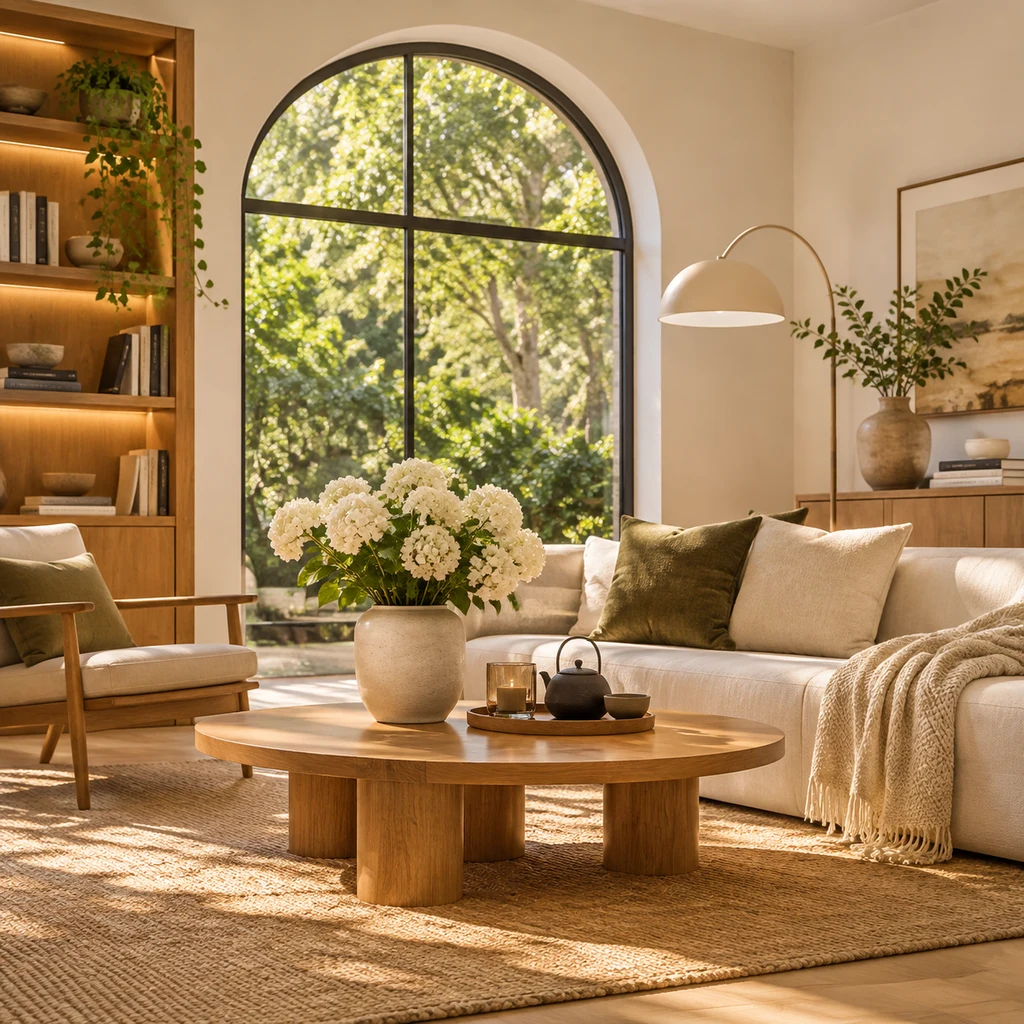
Before a local edit, note windows, furniture and lighting, then inspect the untouched regions after generation. This independently generated illustration is not a before-and-after result from the original test and is not included in its statistics.
FAQ
Where is the mask editor?
In the workspace, every uploaded reference image has a "Mask edit" button. It opens the "Edit mask" editor, where you paint the area you want changed.
Can I skip the mask and just write a prompt?
Yes. Most change-one-thing tasks on Miku AI are prompt-only, and about 83% produce an image. List what must stay unchanged. If other areas keep shifting, switch to a mask.
Other parts changed after my edit. What now?
Go back to the original rather than editing the output. Paint the area to change and add "leave every unpainted area exactly as it is" to the prompt.
How are credits charged?
The same as any generation: per image, by model and size tier. A 1K image on the GPT Image models is 0.3 credits. Failed generations are refunded automatically; see pricing.