How to put your own product into a scene photo with AI (product as image 1, scene as image 2)
With just a white-background product shot you can make a lifestyle image. Upload the product and a scene, ask the AI to replace a similar object in the scene with your product, and match light, shadow and scale. Before/after test, prompt, copyright note and FAQ.
Published · Updated · 4 min read
Short answer: Upload two images: image 1 is your product (ideally on white), image 2 is the scene. Write "replace [an object] in image 2 with the product from image 1, keep the product's shape, colour and details, add shadows that match the scene's light, keep a realistic size, and leave the rest of image 2 unchanged". Replacing an object that is already there works better than "put the product in", because position and scale come for free.
The test: a flask into a camping scene
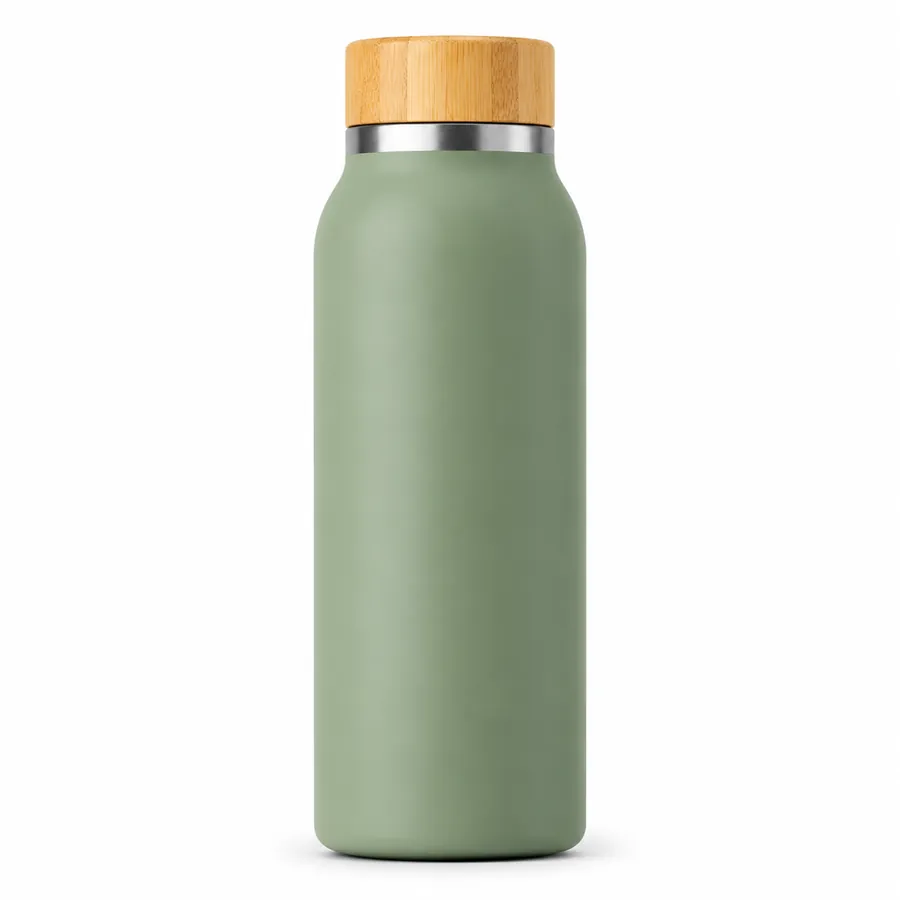
Image 1 is a white-background shot of a matte sage-green flask. Image 2 is a camping table scene with a red sports bottle on it.
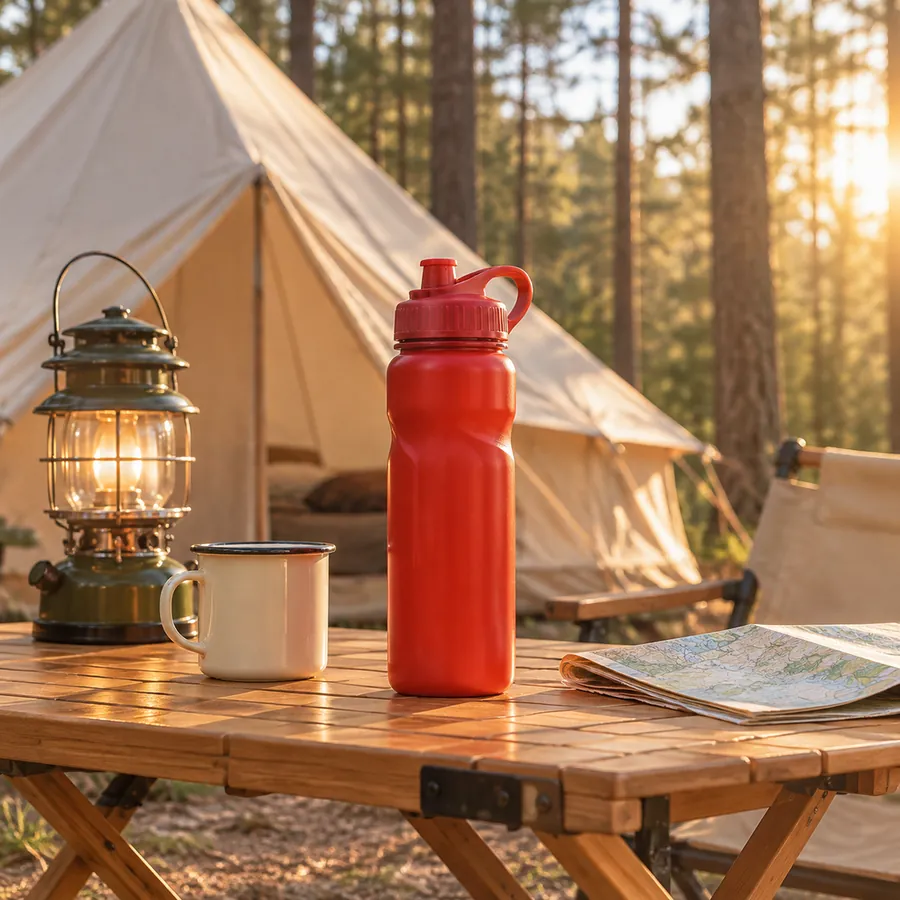
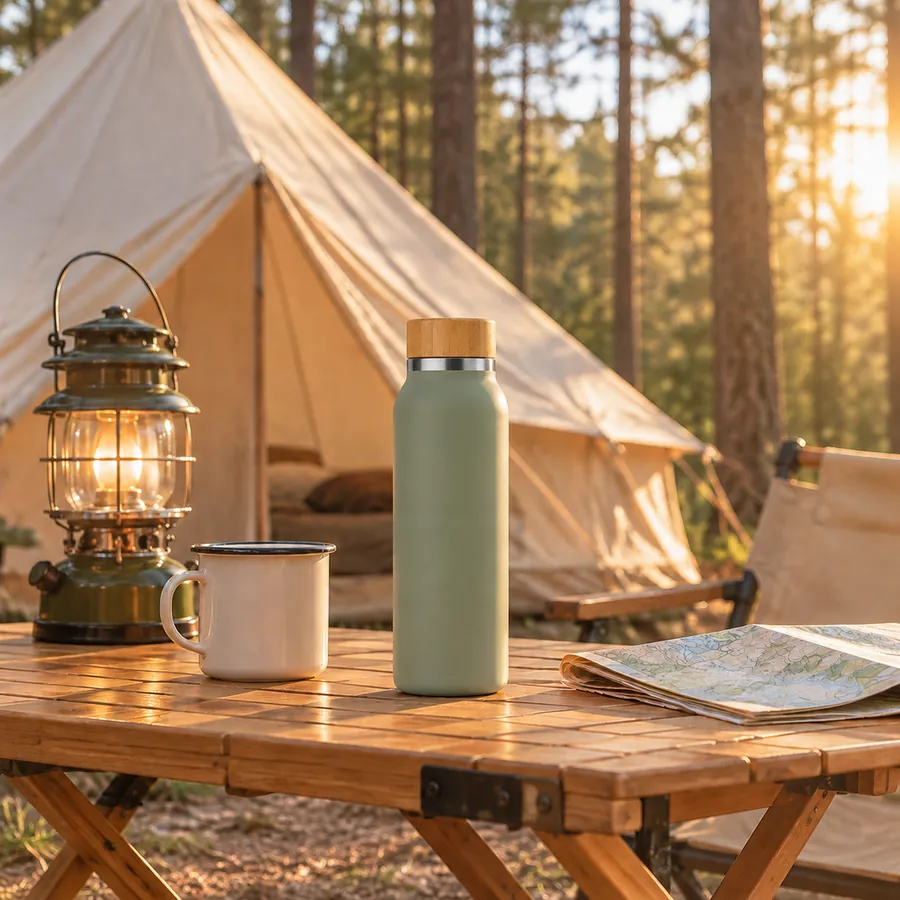
Result:
- The red bottle was replaced by the flask, with its bamboo lid, steel ring and matte finish intact.
- Its size looks right next to the enamel mug and lantern, like a real 500 ml flask.
- The low sun from the right puts a warm rim light on the flask, and its shadow falls to the left on the table.
- The tent, lantern, map and trees did not change.
A prompt you can reuse
Image 1 is my product: a matte sage-green stainless steel flask with a bamboo lid. Image 2 is a camping scene. Replace the red plastic sports bottle on the table in image 2 with the flask from image 1. Keep the flask's exact shape, colour, bamboo lid and steel ring from image 1. Scale it to the size of a real 500 ml bottle next to the enamel mug. Match the golden-hour light coming from the right, with a warm rim light on the flask and its shadow falling to the left on the table. Keep everything else in image 2 unchanged.
This is the exact prompt behind the example.
Six rules for product composites
- Say what each image is. "Image 1 is my product, image 2 is the scene." Images are numbered in upload order.
- Replace, don't insert. If the scene has a similar object, "replace X in image 2 with the product from image 1" gives the model position, size and perspective.
- Give a size reference. "The size of a real 500 ml bottle, next to the mug" stops the product from coming out huge or tiny.
- Describe the light and shadow. Whether a composite looks fake mostly comes down to light and shadow.
- Use a clean product shot. White background, front view, nothing covering the product.
- End with "keep everything else unchanged". Otherwise other parts of the scene may change too.
Where to get the scene
- Generate an empty scene with AI first, then swap the product in.
- Use your own photos.
- Using someone else's photo for a product listing can infringe copyright; make sure you have the rights before commercial use.
How Miku AI users make scene images
Product-swap and lifestyle-scene tasks on Miku AI over the 30 days up to 10 November 2026:
- About 91% included reference images. Of those, more than half uploaded two or more, typically a product plus a scene.
- GPT Image 2 was used most (about 69%), then GPT Image 2.5 Sunburst.
- About 58% used 1K output and 26% used 2K.
Typical uses: outdoor gadgets placed in snow or camping scenes, gift boxes set into wine cabinets and display cases, and a microphone on a stage or a camera in someone's hands swapped for the seller's own product.
Additional composition illustration
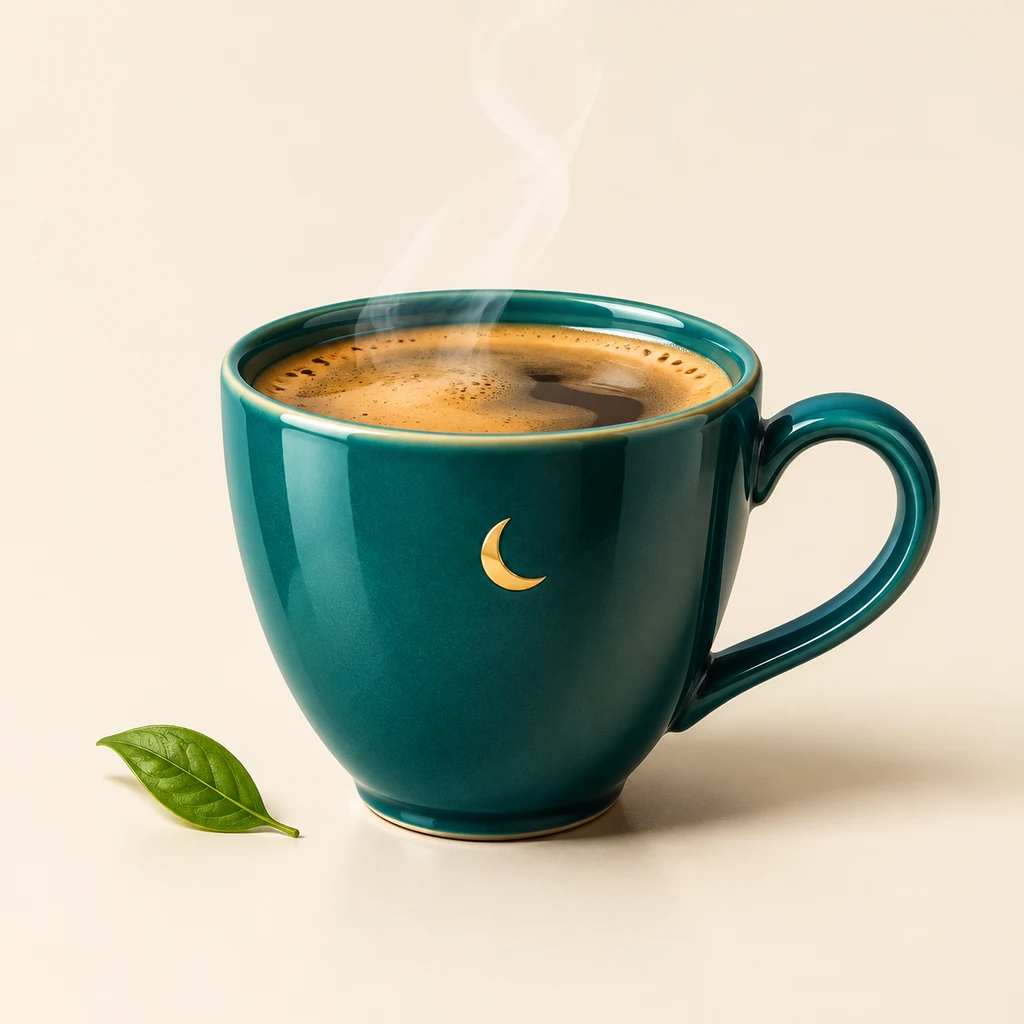
After placing a product in a new scene, compare its handle, decoration and contact shadow, not just the backdrop. This independently generated illustration is not a before-and-after result from the original test and is not included in its statistics.
FAQ
What if the AI changes how my product looks?
Name the key details in the prompt ("bamboo lid, steel ring, matte finish") and ask for them to match image 1 exactly. If it still drifts, use a sharper product photo or make the product larger in the frame.
Can I add several products at once?
Yes: one image per product, numbered in order ("image 1 is…, image 2 is…, image 3 is the scene"). More products are harder to balance, so start with one or two. See How many reference images can Nano Banana Pro take? for upload limits.
Can I use the composite on my product page?
As a lifestyle image, yes, but the product shown must match the real one: no exaggerated size, colour or accessories. Zoom in and check before listing.
Which model should I use?
The example used GPT Image 2.6 Sunburst; Miku AI users most often use GPT Image 2. See pricing, or find ready-made scene prompts in the prompt gallery.