How to put a product on a white background with AI without distorting it
Turning a casual product photo into a pure-white listing image is easy for AI; keeping the product itself from being redrawn is the hard part. We tested a wallet photo, show what held up and what changed, and give a prompt and a pre-listing checklist.
Published · Updated · 4 min read
Short answer: Write "place it on a pure white #FFFFFF background, keep the product's shape, proportions, texture, colour, stitching and edges exactly as in the photo, do not redraw or restyle it", and name each object to remove. Then always compare the result with the original. In our test the background, clutter and colour cast were handled well, but the wallet's angle changed, which is exactly what you need to check.
The test: a wallet on a desk, onto white
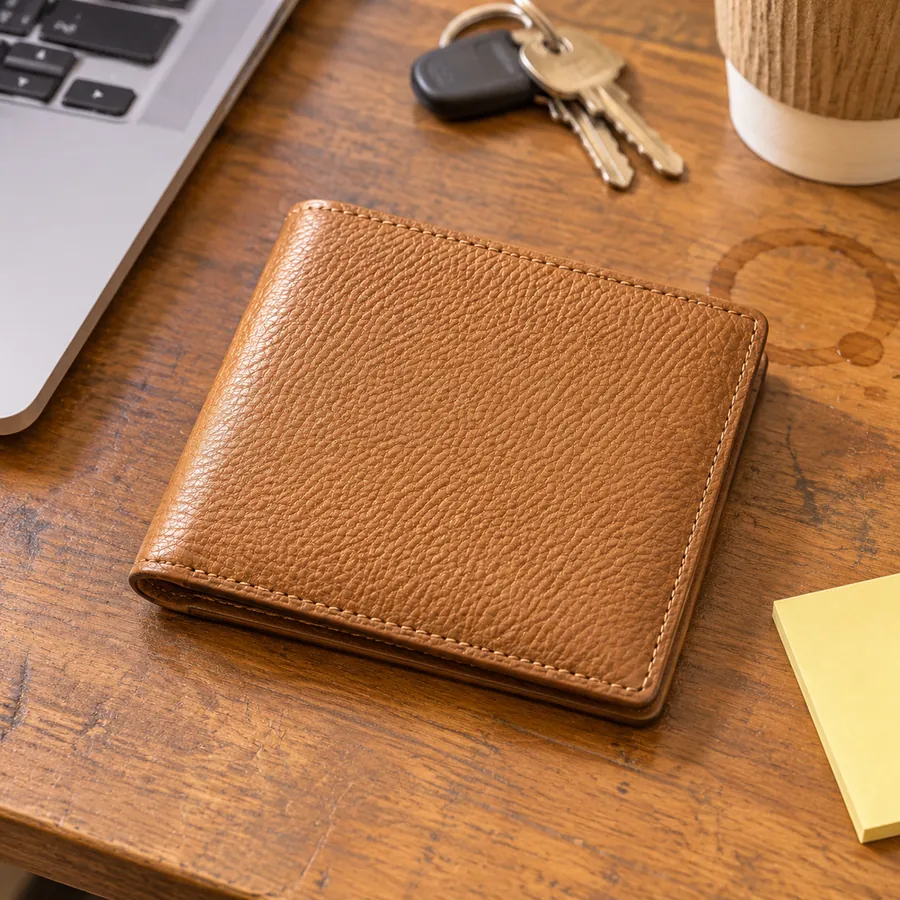
The original is a casual phone photo of a wallet on a desk with a laptop, keys, a coffee ring and a sticky note, under warm yellowish light.
What held up:
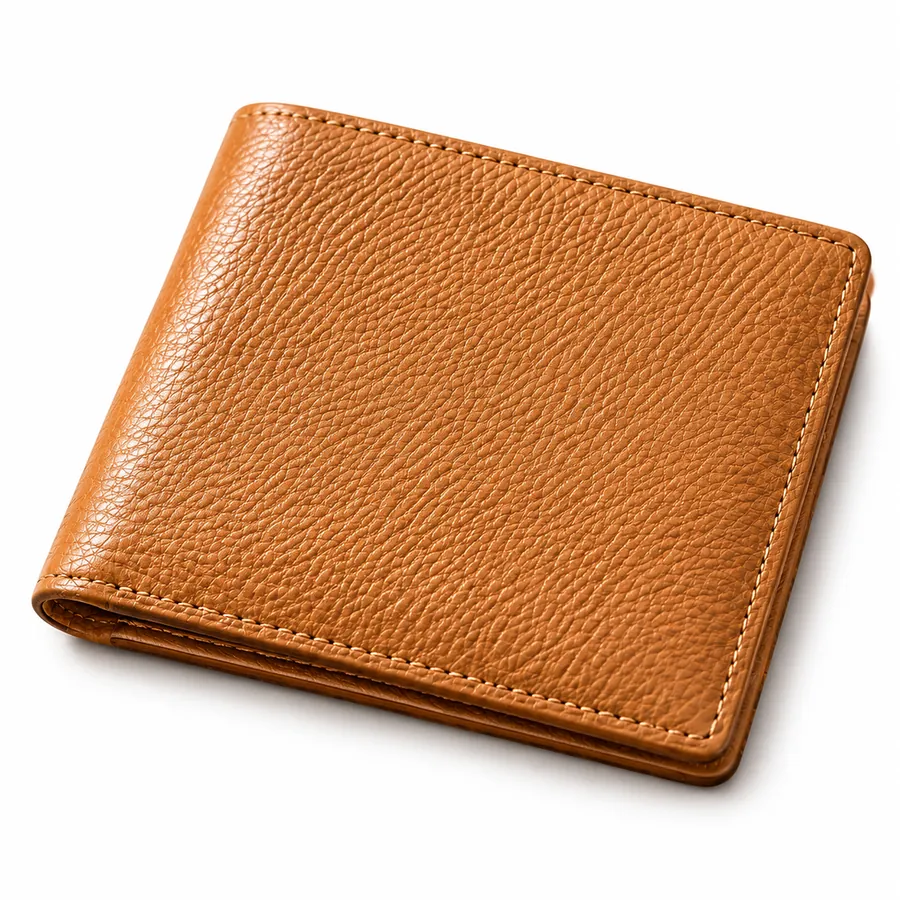
- A clean pure-white background; the desk, laptop, keys, cup and note are all gone.
- The yellow cast was corrected to neutral daylight.
- The leather grain, stitching, folded edge and colour match the original, with a natural contact shadow underneath.
What changed:
- The angle. The original is a slightly high, angled view; the result is closer to straight overhead and rotated a little, so the wallet looks squarer than in the photo.
- The prompt asked for the same angle, and the model adjusted it anyway.
That matters in ecommerce. A white-background image is there to show buyers the real shape of the product; if the angle and proportions shift, it may no longer match what they receive.
A prompt you can reuse
Place this wallet on a pure white #FFFFFF background as a clean ecommerce white-background product photo. Keep the wallet's exact shape, proportions, leather grain, colour, stitching and edges as in the photo; do not redraw or restyle it. Correct the yellow colour cast to neutral daylight. Remove the desk, laptop, keys, cup and note completely. Keep the original camera angle and perspective; do not rotate it. Centred, filling about 80% of the frame, with a soft natural contact shadow under it.
The example was made with this prompt minus the "do not rotate it" clause, which we added after seeing the result.
Five rules to keep the product undistorted
- Shoot the original straight on. The AI tends to "straighten" products; the more standard the original angle, the closer the result.
- Name the details to keep. "Grain, stitching, zip, logo, button positions" works better than a vague "keep it the same".
- Ask separately for the angle and perspective. "Keep the original camera angle and perspective; do not rotate it."
- Name each object to remove. "Remove the laptop, keys and cup" is cleaner than "remove the clutter".
- Compare before listing. Put the result next to the original and check outline, proportions, logo, colour and small parts. If anything changed, regenerate or use a sharper original.
White-background checklist before listing
| Check | What to look for |
|---|---|
| Background | Pure white, no grey edges, gradients or leftover objects |
| Outline and proportions | Side by side with the original: same aspect, corners, thickness |
| Angle | Not rotated or switched to a different view |
| Logo and text | Same content, position and sharpness as the real product |
| Colour | Matches the real product after the colour-cast fix |
| Small parts | Zips, hardware, buttons and stitching neither dropped nor added |
| Fill | Product size in frame meets the marketplace's rule |
For example, Amazon requires a pure-white background (RGB 255, 255, 255) for main images, with the product filling about 85% of the frame. Other marketplaces differ; follow their seller rules.
How Miku AI users make white-background images
White-background tasks on Miku AI over the 30 days up to 10 November 2026:
- About 68% included a reference image: "upload a real photo, put it on white". The rest generated white-background product images from scratch.
- About 48% of prompts asked for things to stay the same.
- GPT Image 2 was used most (about 53%), then GPT Image 2.5 Sunburst (about 29%).
- About 30% used 2K output, a higher share than other ecommerce tasks.
Additional composition illustration
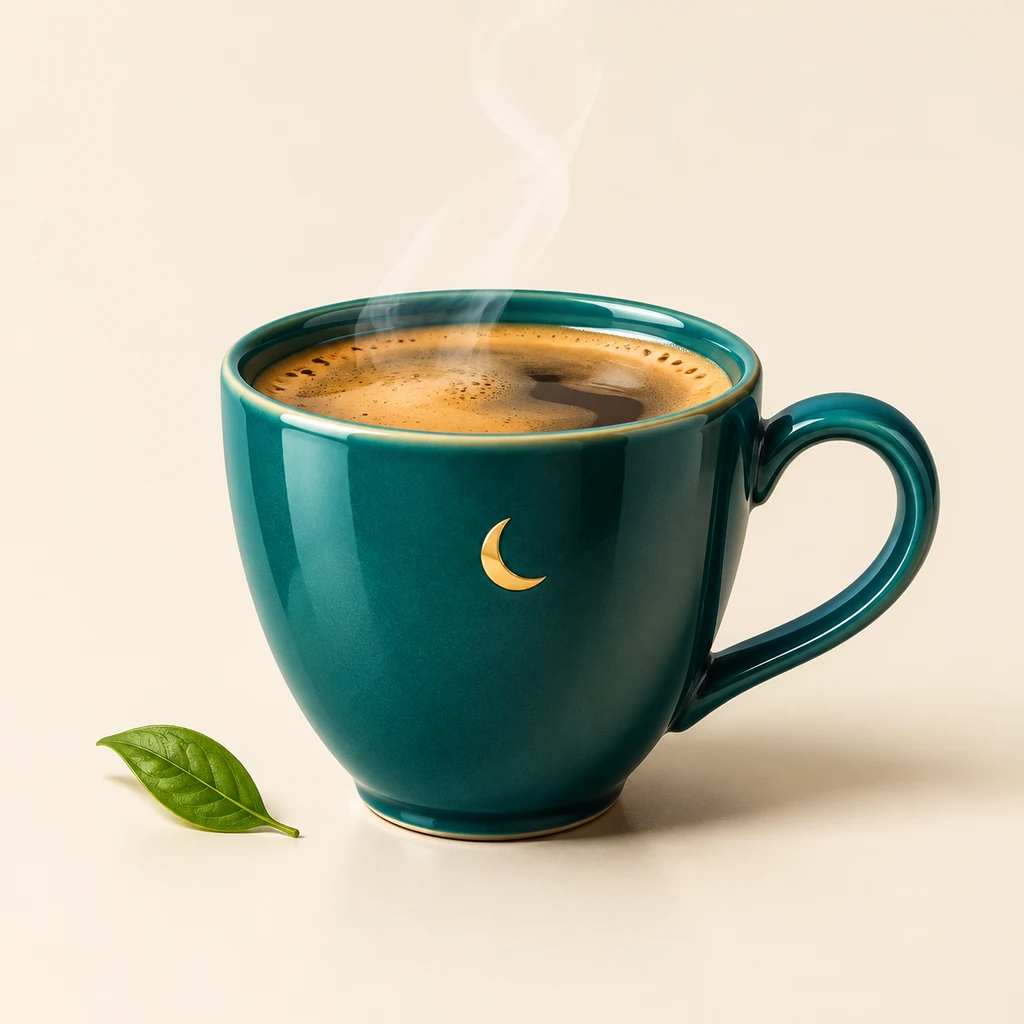
For a white-background result, inspect the rim, handle and silhouette as well as the background color. This independently generated illustration is not a before-and-after result from the original test and is not included in its statistics.
FAQ
How is an AI white background different from cutting out the product?
A cut-out keeps the product's original pixels and only removes the background. An AI white background regenerates the image, so light and shadow look more natural, but product details can change. If nothing about the product may change, a cut-out is safer; if the original lighting is poor and needs redoing, the AI route looks better.
What if the product comes out distorted?
Use a straighter, sharper original first. Then name the distorted part in the "keep unchanged" list. If it still drifts, generate a few times and pick the closest.
What resolution should white-background images be?
Preview at 1K, list at 2K or 4K so buyers can zoom in. See pricing for each model.
Can I make a lifestyle image after this?
Yes. A white-background shot is the ideal product image for a composite; see How to put your own product into a scene photo with AI. For colour variants, see How to change a product's colour to an exact hex code with AI.